¶ Planning:
The Planning Section under Monitor Module is to Create Projects, See a detailed Timeline View using Editorial Calendar and browse various Topics that are assigned to the writer. This helps the editors to plan the future publication and help the writers to publish a story.
¶ Actions in Planning:
In the Planning Section under the Monitor Module, You can perform the following actions:
- Create & Edit Topics/Projects
- View the Editorial Calendar in Day, Week & Month Format
- See details of Assigned Projects
- Apply Time based Filters and Perform Search
¶ Topics:
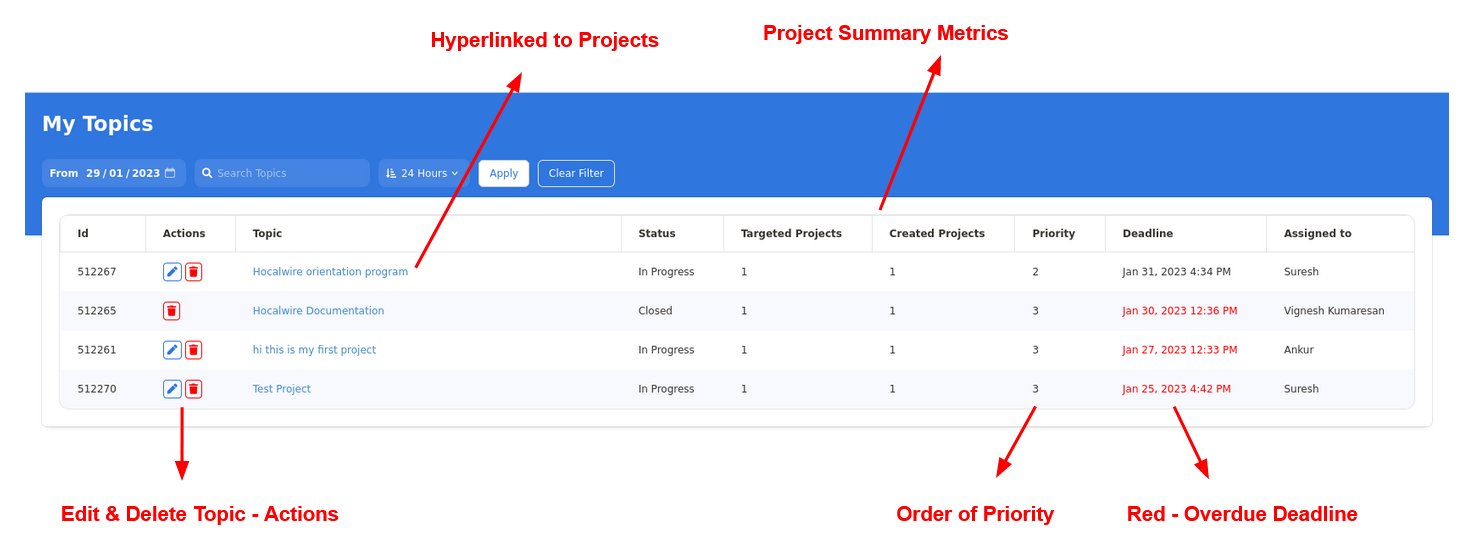
In this page you can monitor the various topics a writer is assigned and is under progress. You can see status of the Projects and their priority in detail. The difference between dashboard and this view is that, this shows individual projects status and the order of importance for the writer/editor to execute.
You can also go directly to the Projects Page by clicking on the Blue Hyperlink
Each Topic has a Unique ID and can be modified directly from this window.
¶ Topic Details Page:
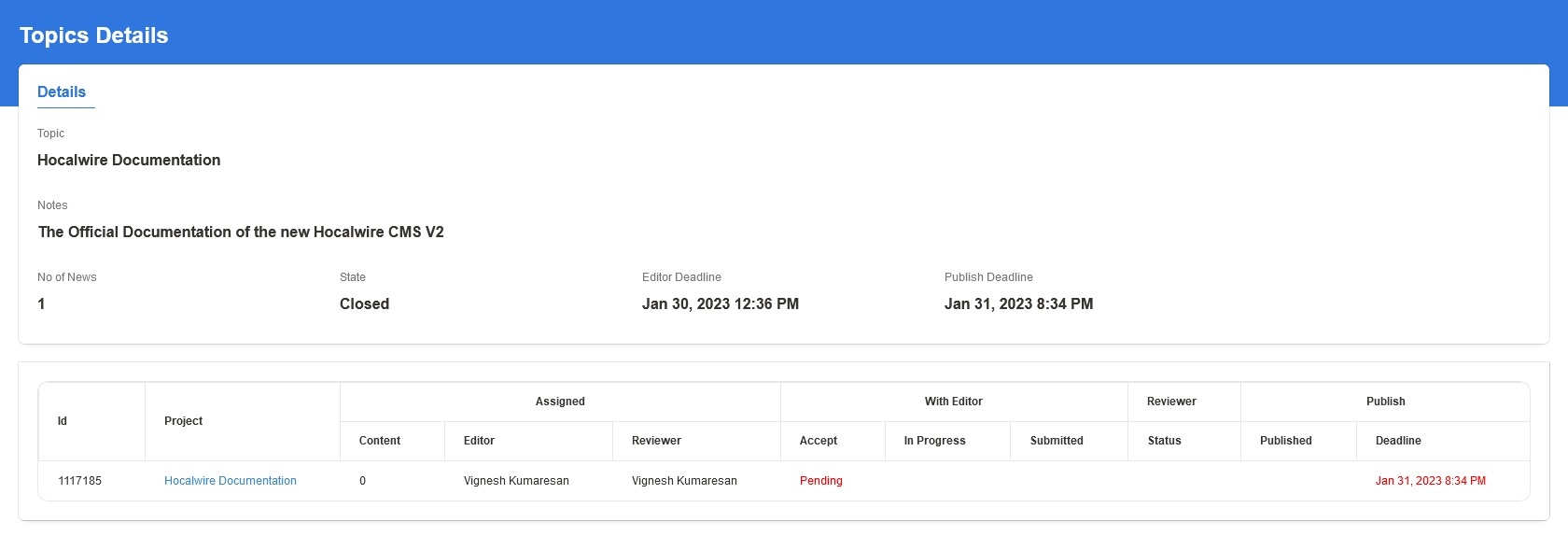
On clicking the Hyperlinked Topics Title, You will be redirected to a Topics Details Page which is a summary for the Topic under a Project. You can primarily see an unique Id, Project Title, Assigned, Editor, Reviewer & Publish Deadlines.
In this page you can see the Project/Topic Status and no actions can be performed other than navigating to the Projects Page.
¶ Editorial Calendar
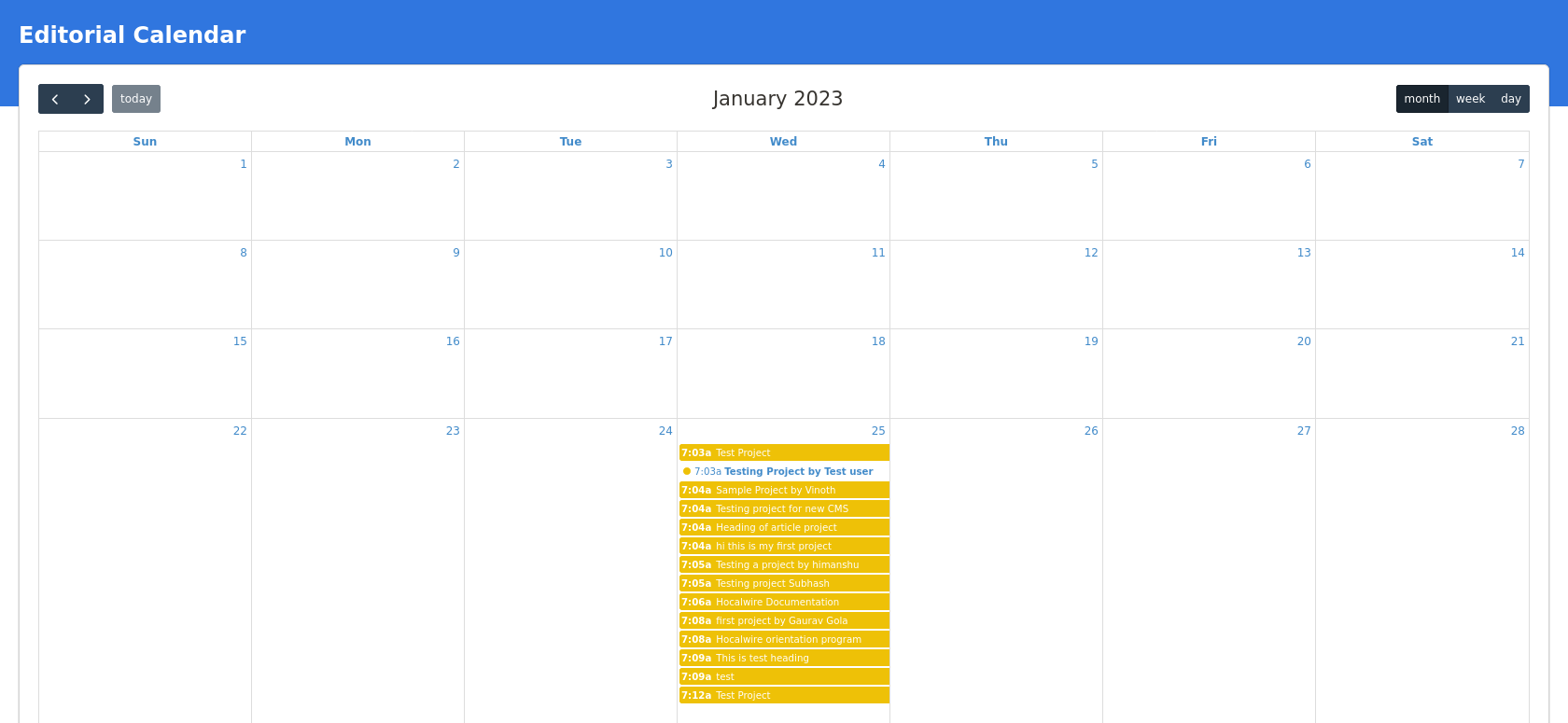
The calendar view is an excellent approach to sum up the planned action for a given timeline.
You can see a timeline and title of the stories that are spread across a given day, week and month. This Page is populated using the Start Date & End Date created while defining the scope of the Project.
Actions: Clicking on the title from the given calendar view takes you directly to the Project Details Page and you can Edit them from that section.
¶ All Projects:
In this All Projects view we can see the entire list of Projects that are currently being executed in the publication. This can be modified using the access control system to define who gets to see what pages and permission levels
Actions: You can also Create a Project from this view.
You can primarily see an unique Id, Topic, Project Title, Assigned, Editor, Reviewer & Publish Deadlines. Clicking on the Projects Title hyperlink takes you to the Project Details Page
This page also comes with a default filter view of 24 Hours followed by One Week, Month & Year
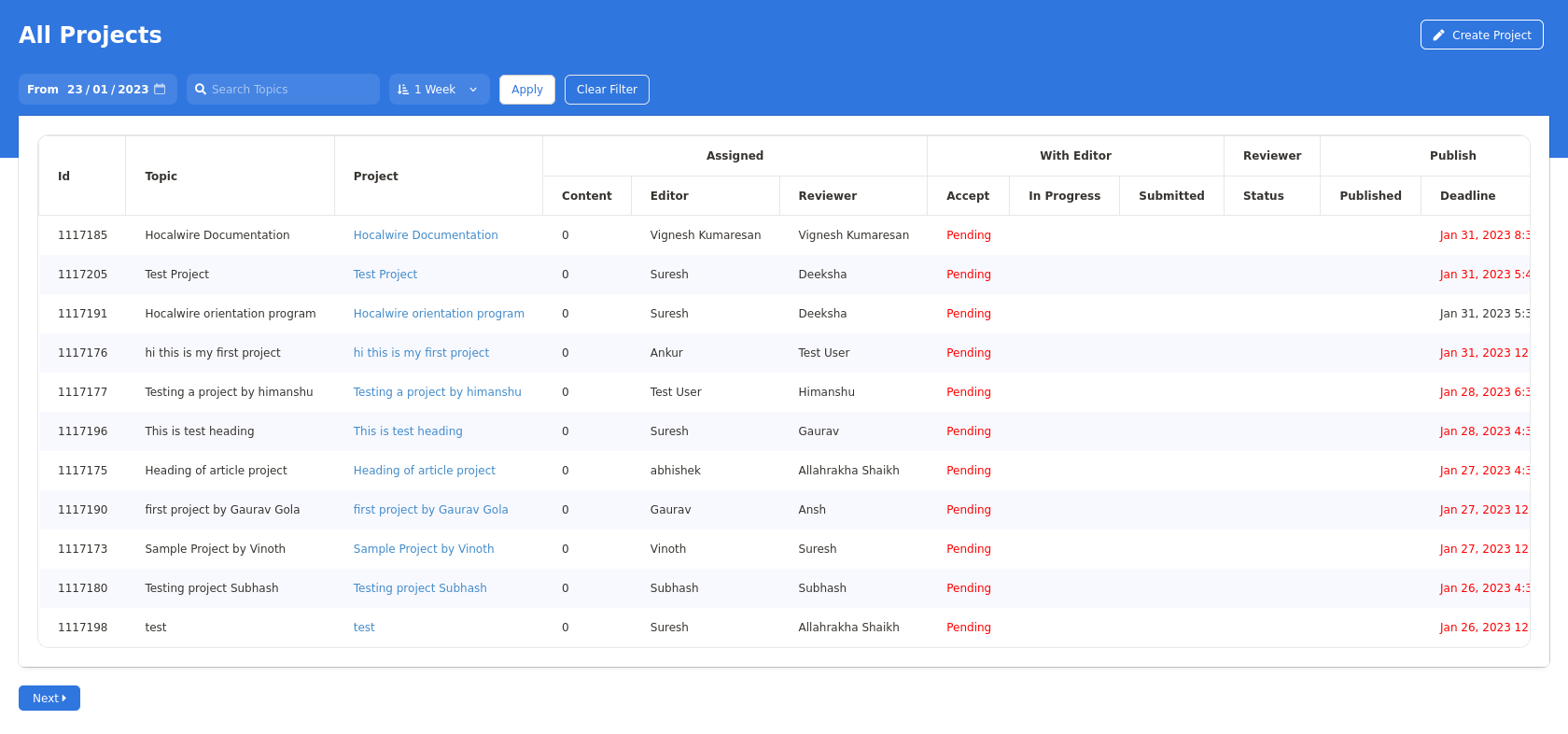
Based on the status of a Project with its two stake holders the Pending, Assigned and Completed Indicators will show up in the Page View. Red Highlights appear for Projects that are past due.